SDS Hub
SDS Hub
Any worker/employee from an institution that has purchased our SDS Hub Subscription can utilize this module. The individual does not need to be registered in EHSA to access SDSs in our Hub.
SDSs (Safety Data Sheets) are available through our SDS Hub. The search can be by CAS Number only, CAS Number and Vendor, Vendor Catalog Number.
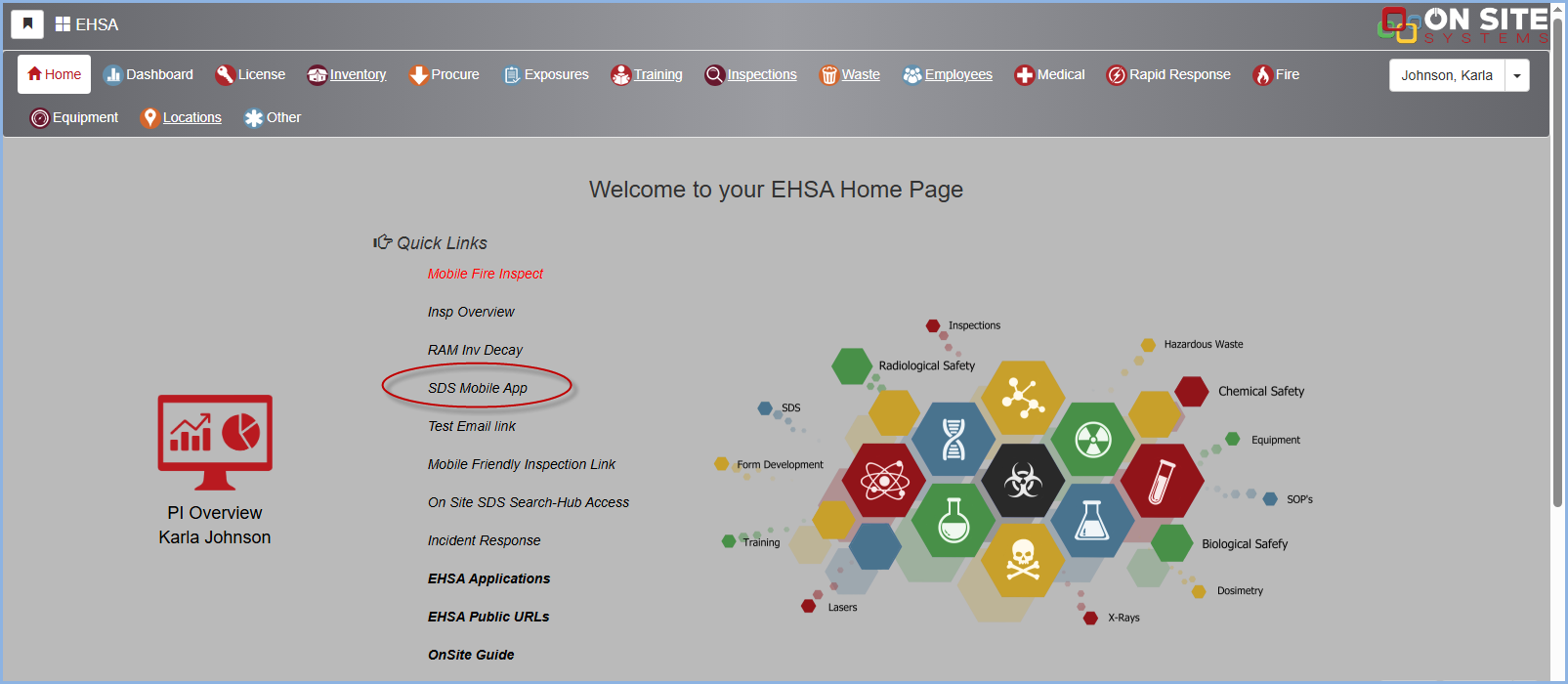
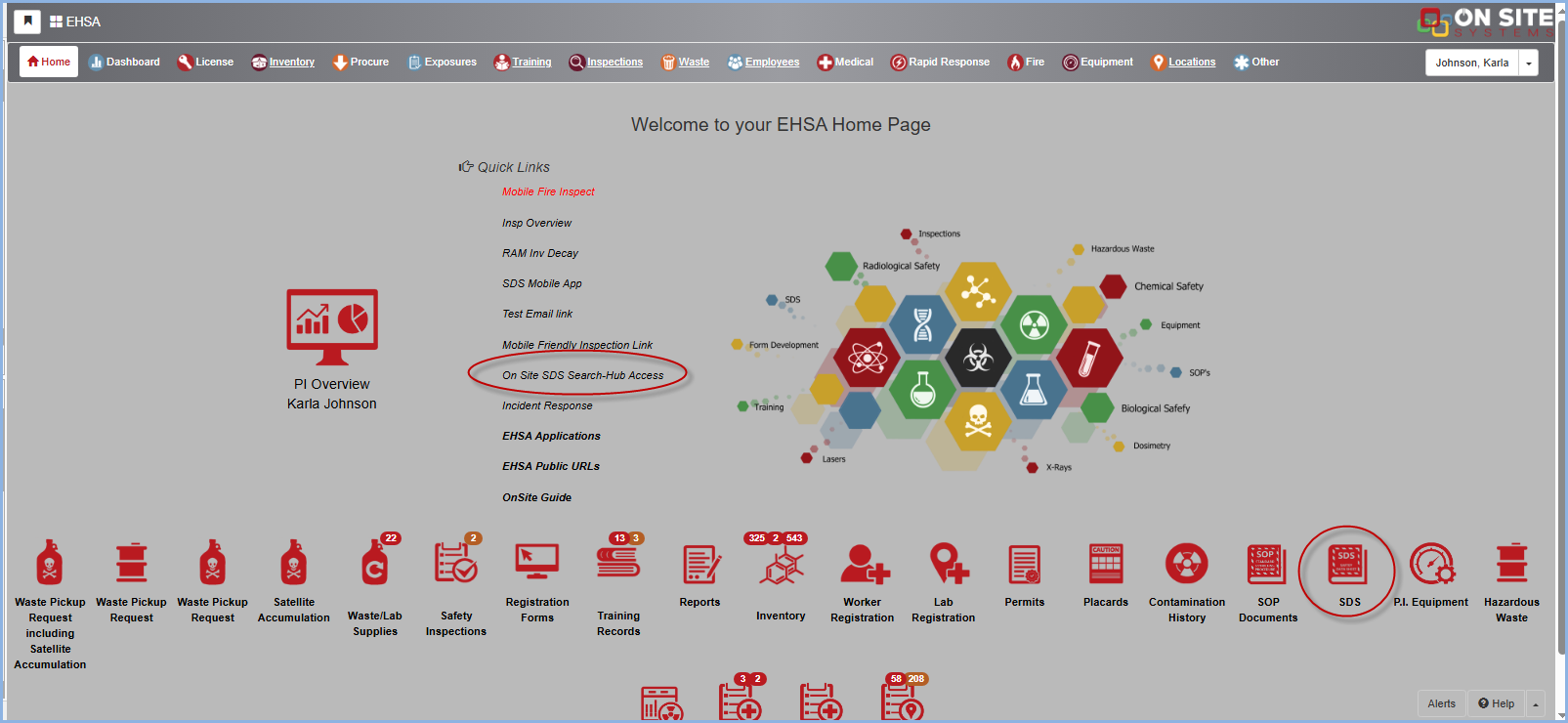
To access the SDS Hub, click on On Site SDS Search-Hub-Access under Quick Links, or by the SDS Hub icon in the lower portion of your screen.
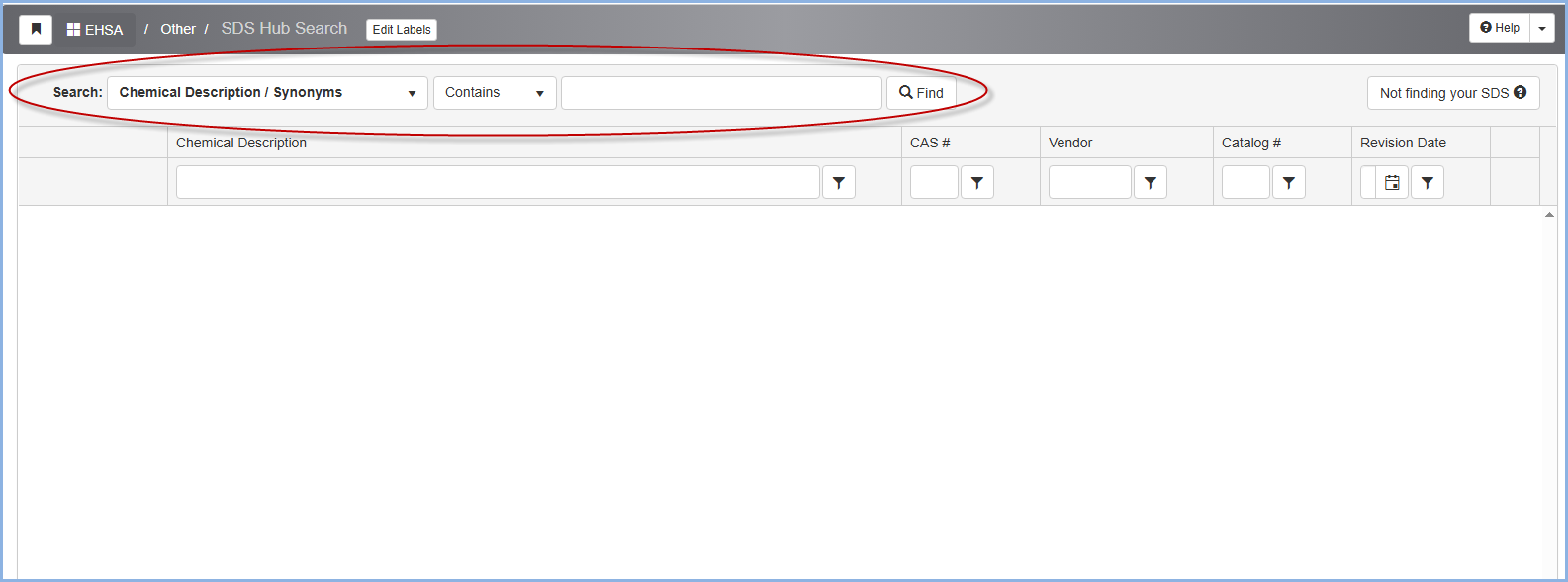
To begin a SDS search on the SDS Hub Search page, choose an option from the Search dropdown (Chemical Name/Description, CAS #, or Catalog #.)
Type in the appropriate information and click Find.
The results will show how many SDSs are associated with the chemical information that was searched.
You can narrow the results by typing in additional information associated with the desired SDS, such as Chemical Description, CAS #, Vendor, Catalog #, etc.
Once you have found a match, click on the blue View SDS button on the left-hand side of the screen to view and/or download the SDS PDF.
If the search doesn’t result in an exact match, click the Not finding your SDS? button on the top right-hand side of the screen.
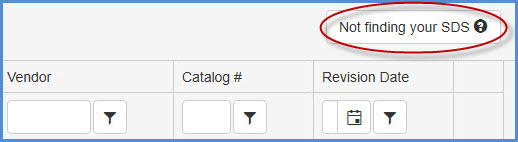
Fill out the desired SDS’ information. *New SDS Requests must include a Vendor & Catalog # for consideration.
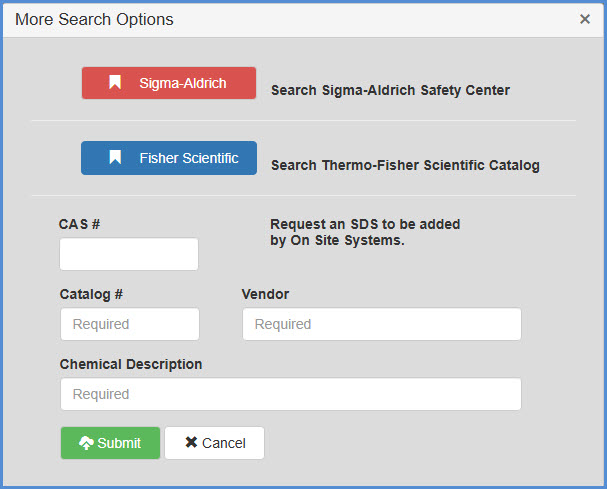
Click Submit. This sends On Site Systems a notification to search out the desired SDS. Once On Site Systems finds then uploads the desired SDS, the client will receive a notification that their SDS is now available to view in the SDS Hub.
On Site Systems will contact the Vendor to request a copy of a SDS PDF if a SDS that has been requested cannot be found. On Site Systems will keep you updated in the process.
-
With a purchased EHSA Chemical Safety Assistant module, you can utilize the SDS Hub feature Under Inventory > Chemical Inventory > Quick Chemical Entry.
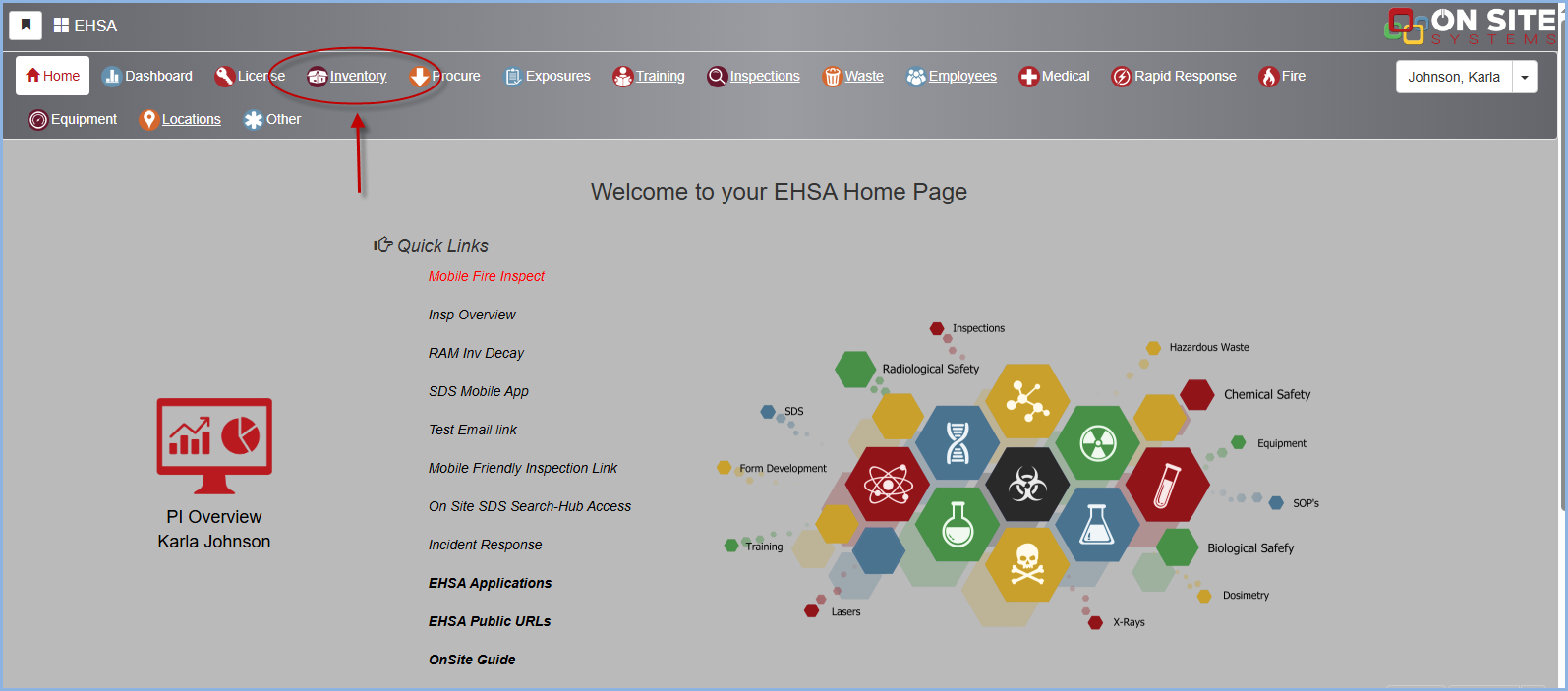
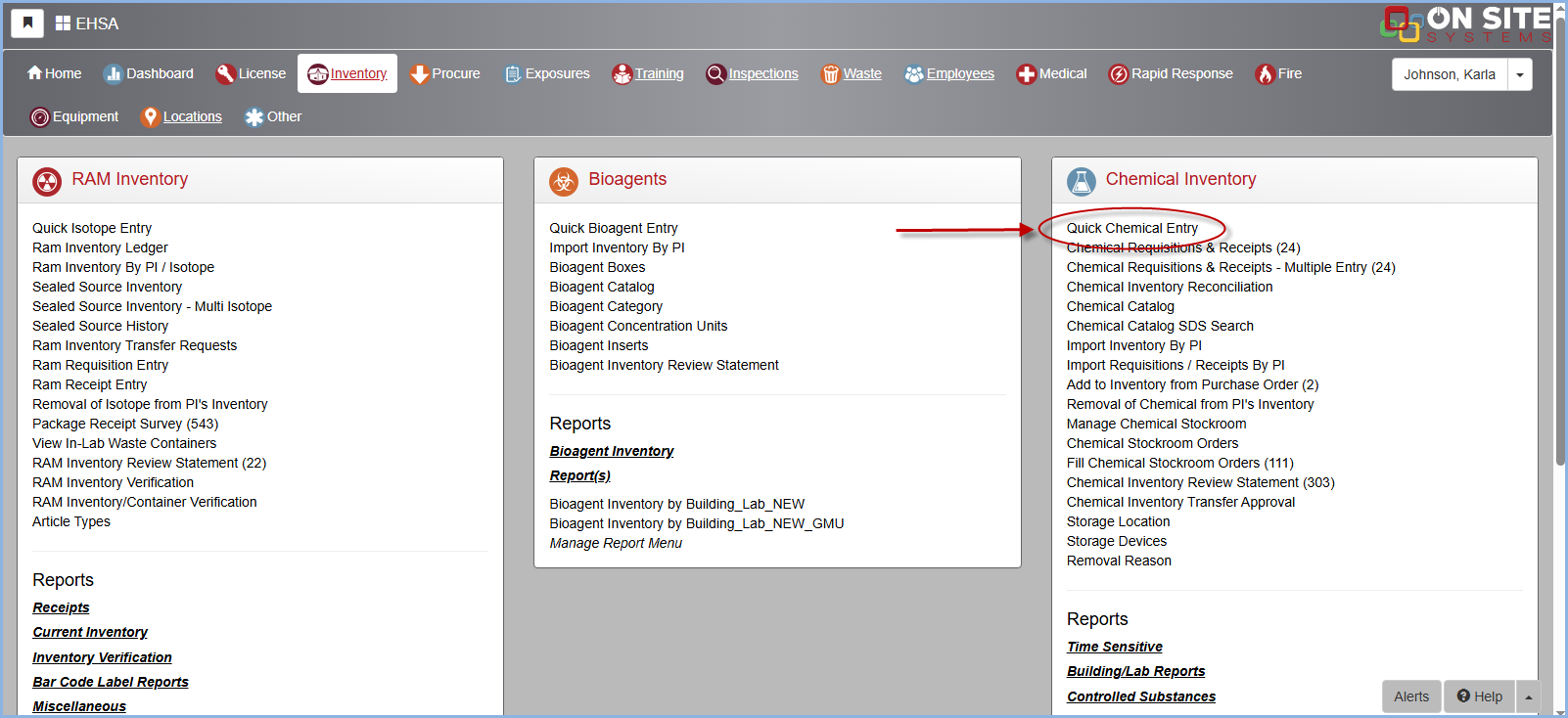
An admin user can select a PI's Chemical Inventory. Proceed to filter out a chemical under Chemical Name.
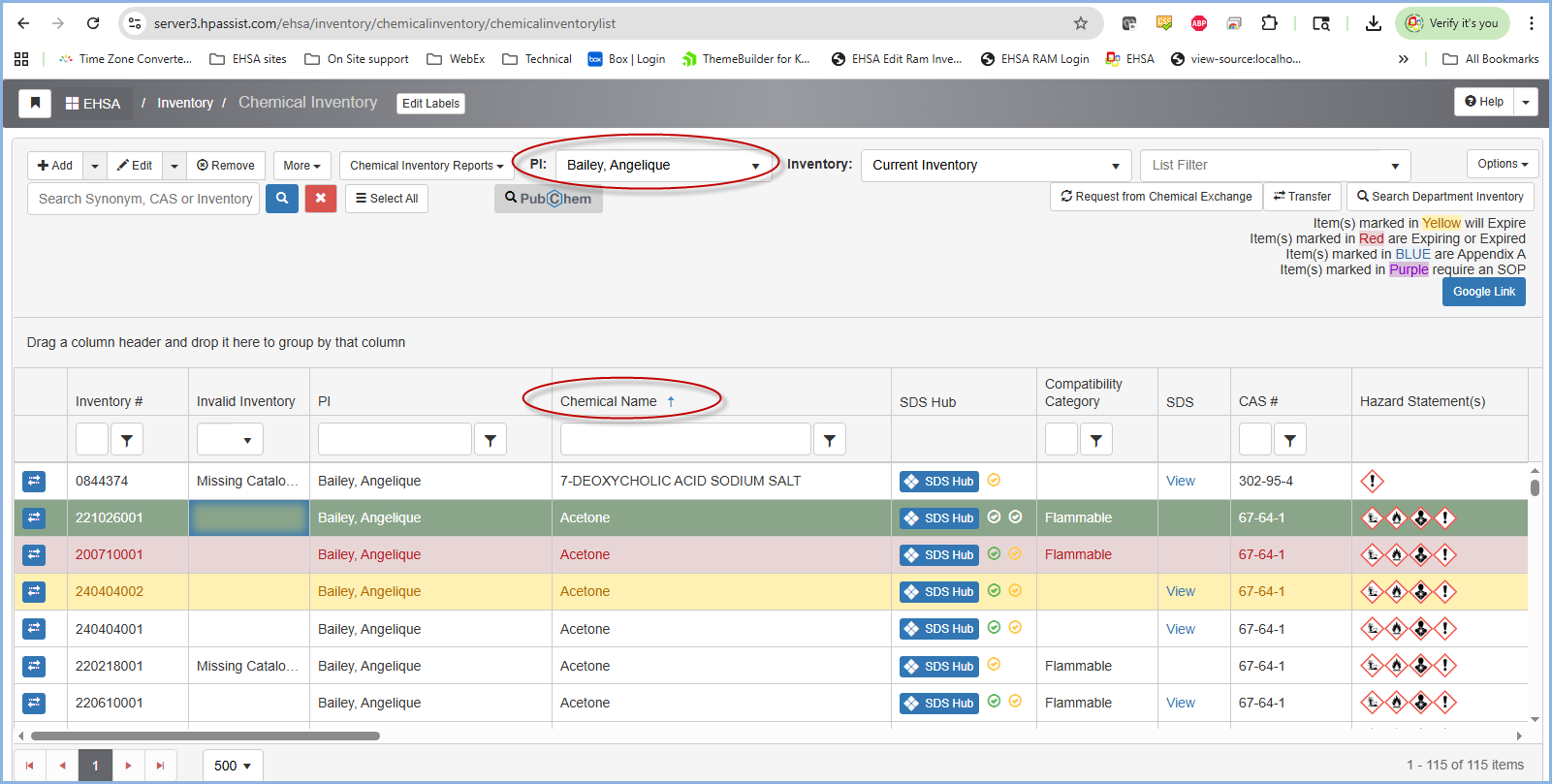
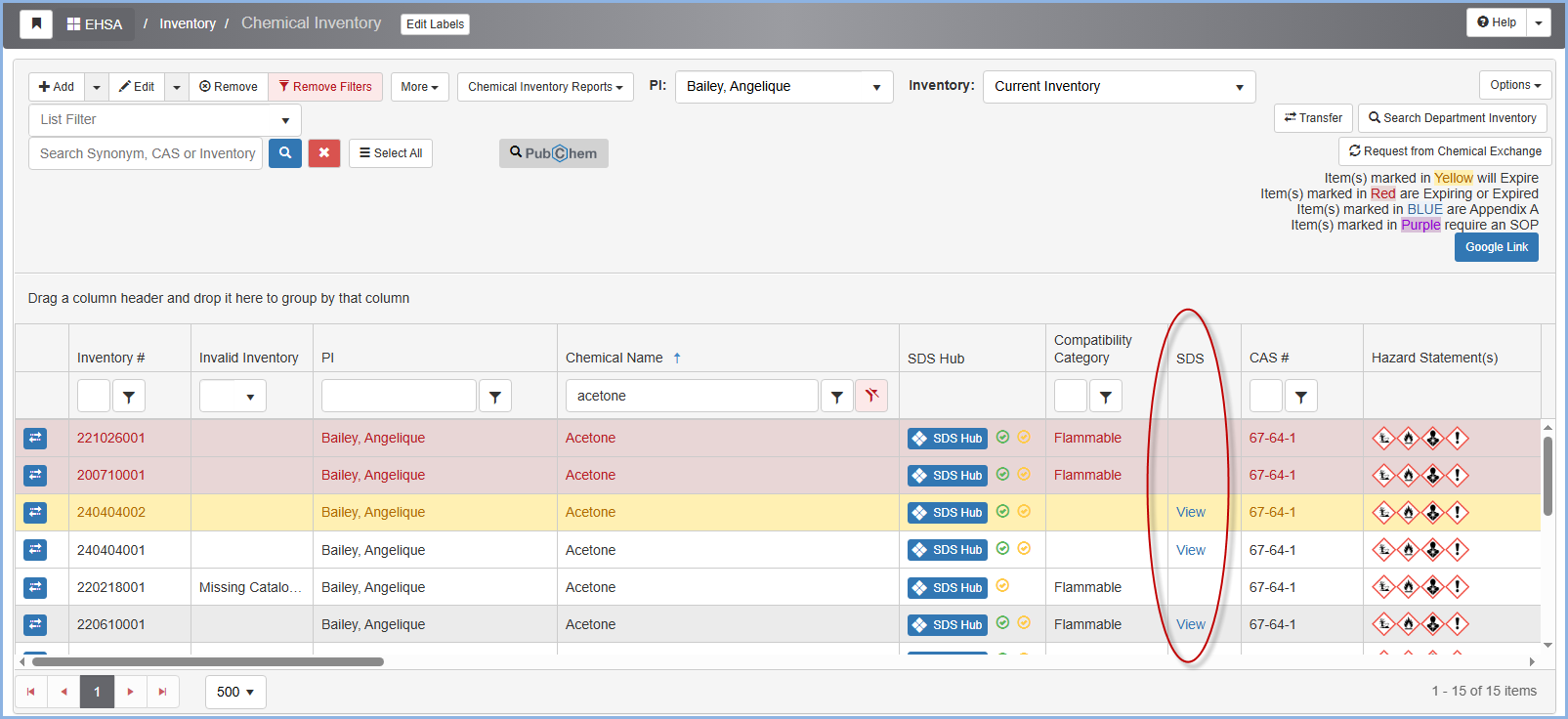
The SDS column allows clients to view their own uploaded SDSs, which are linked to their chemical inventory - such as Acetone, as shown in the example below.
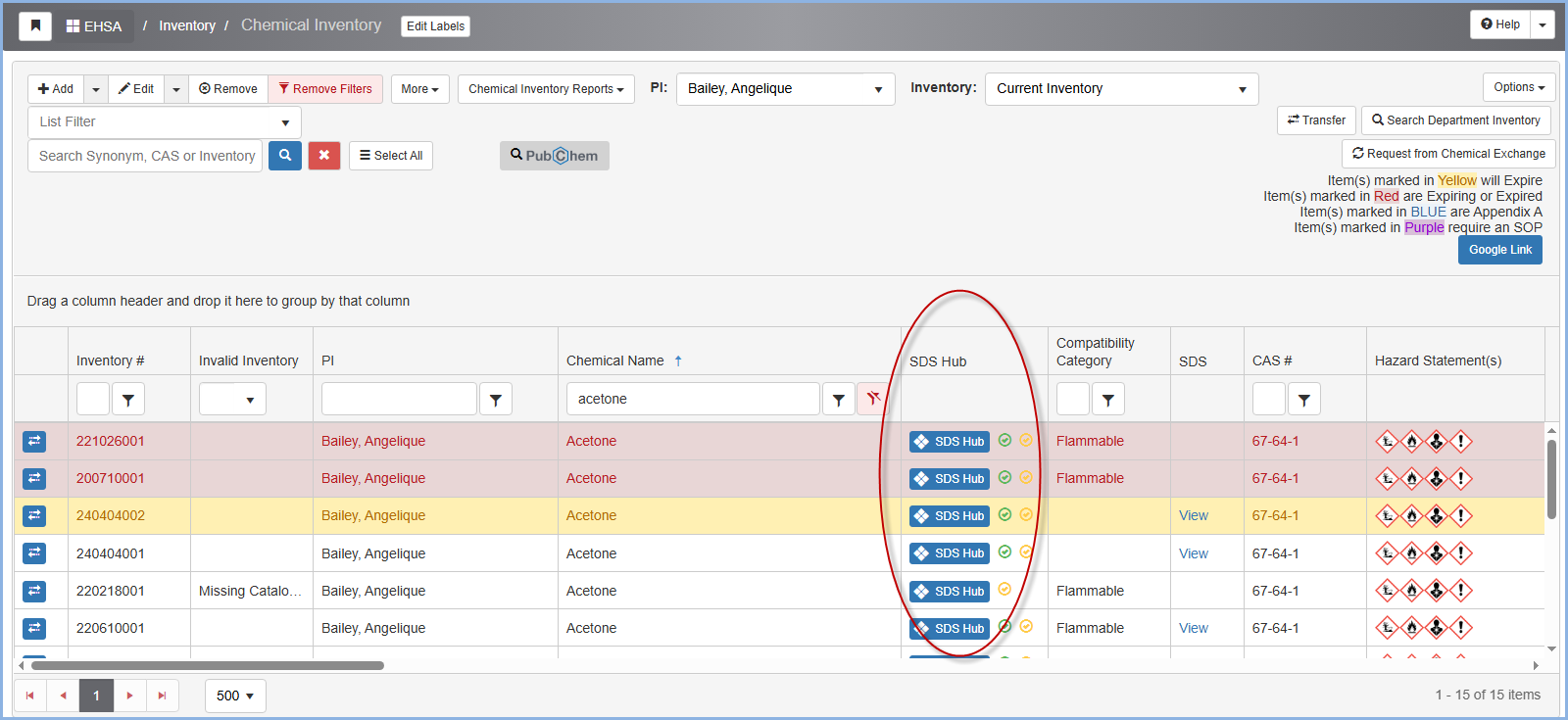
After purchase, the SDS Hub column becomes available, allowing users to view and download SDSs uploaded to our Hub for specific chemicals- such as Acetone, as shown in the example below.
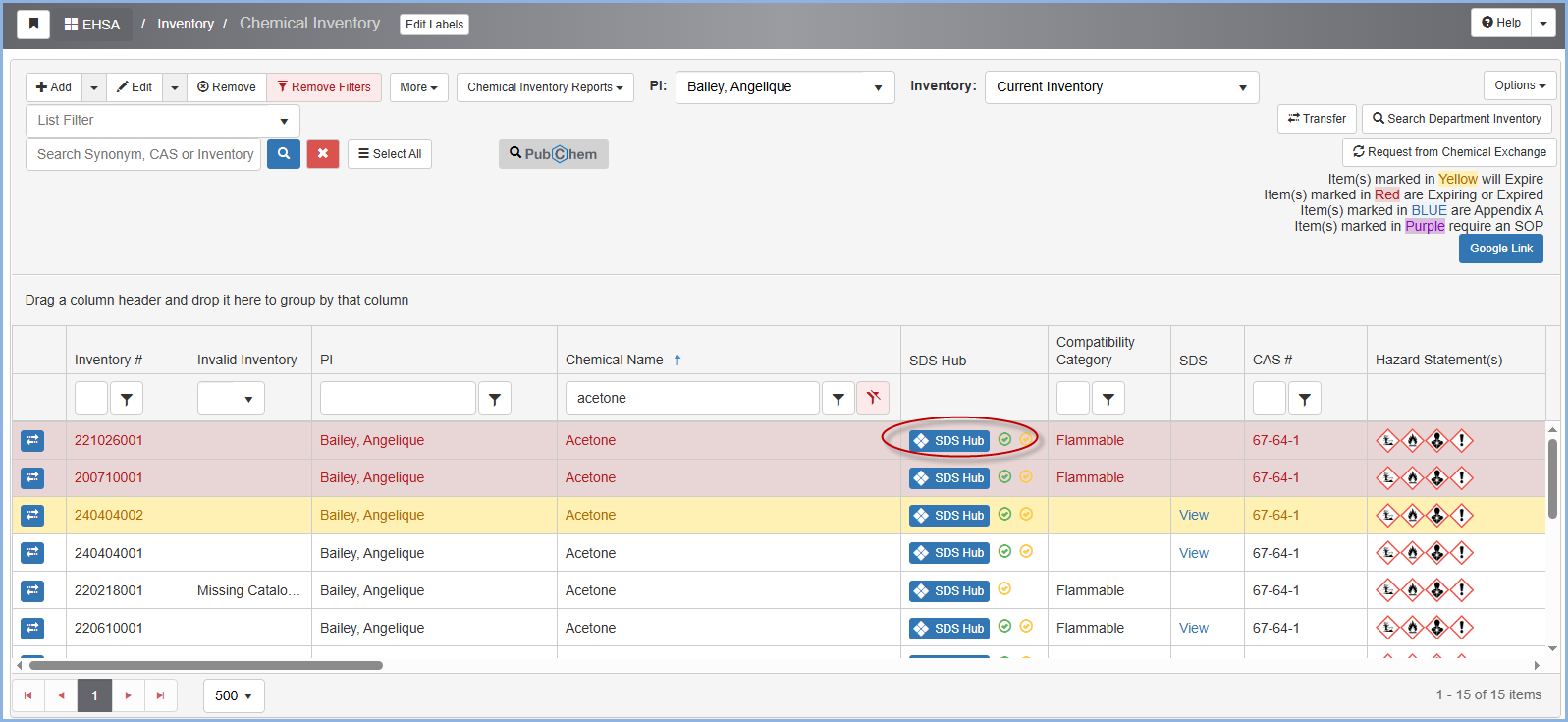
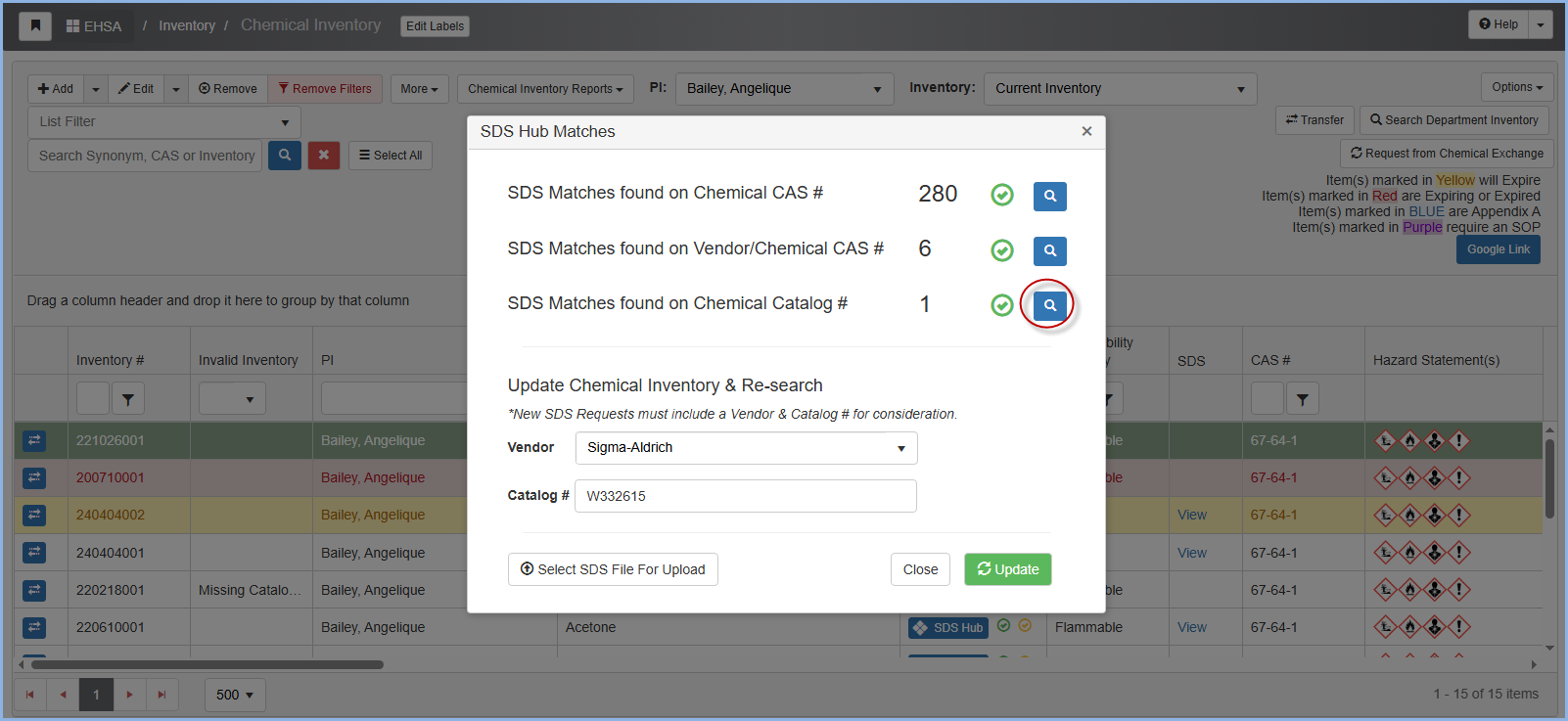
Click the blue SDS Hub button in the row associated with the chemical to view the SDS Hub matches.
Click on the blue magnifying glass to view the matches.
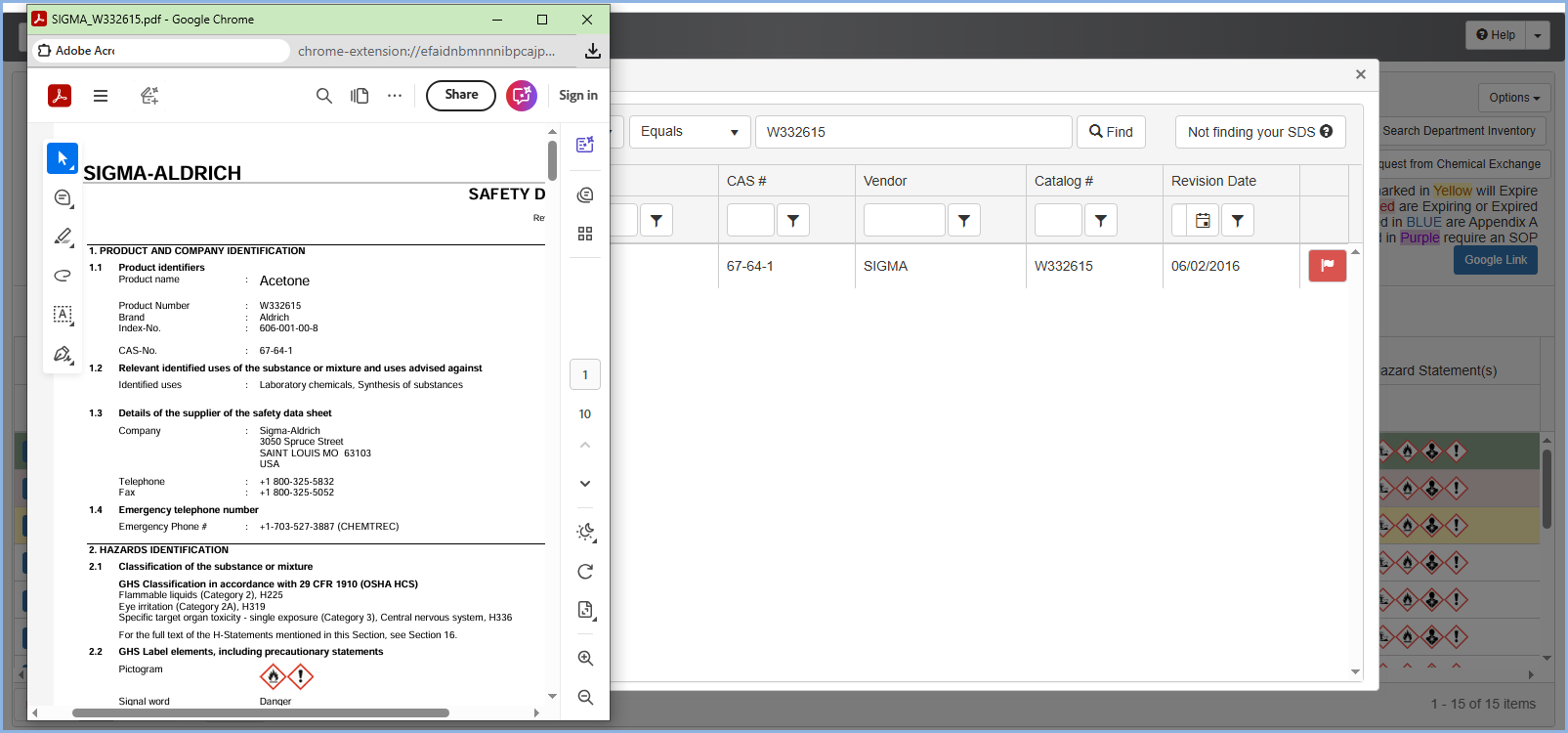
Click View SDS on the desired SDS.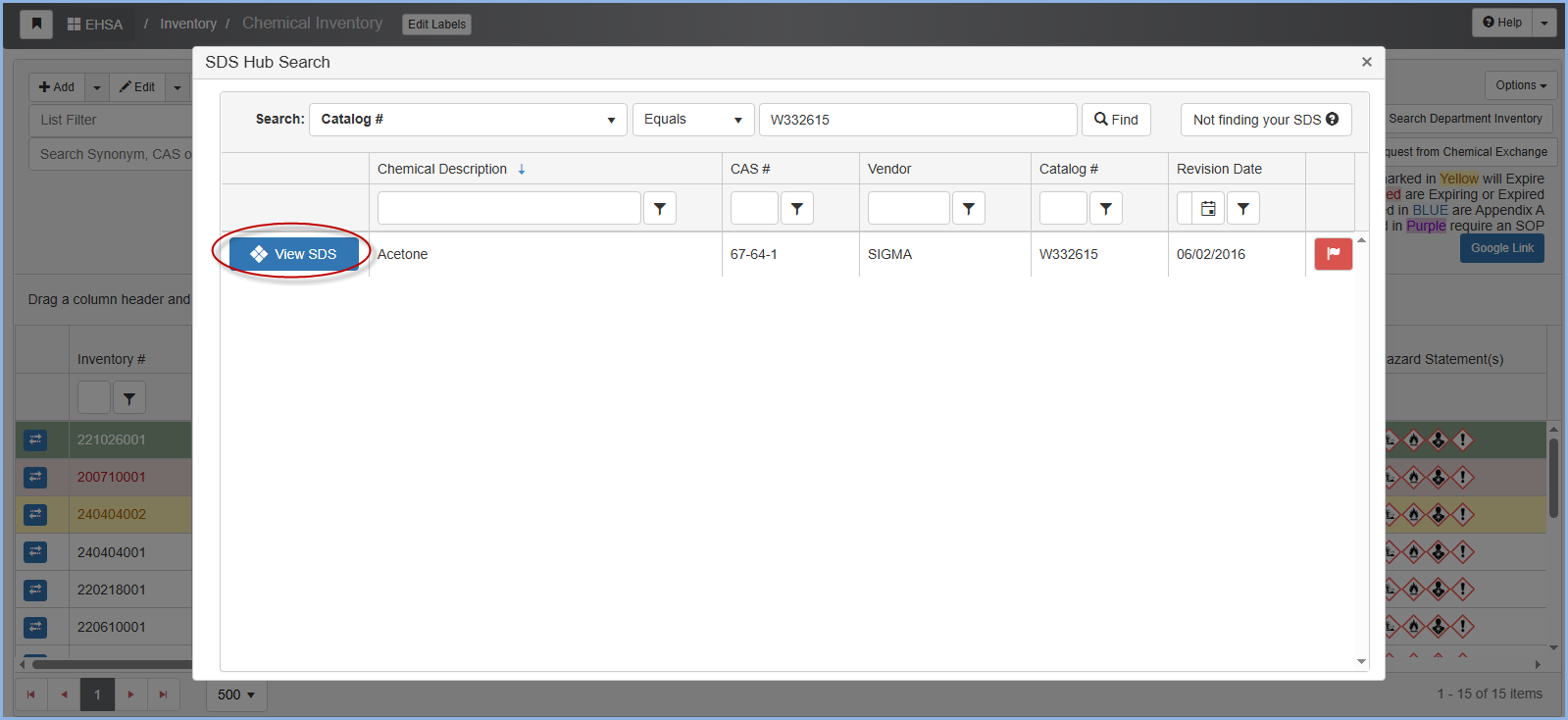
There's also the option to upload and submit a SDS for review. Click on Select SDS File For Upload.
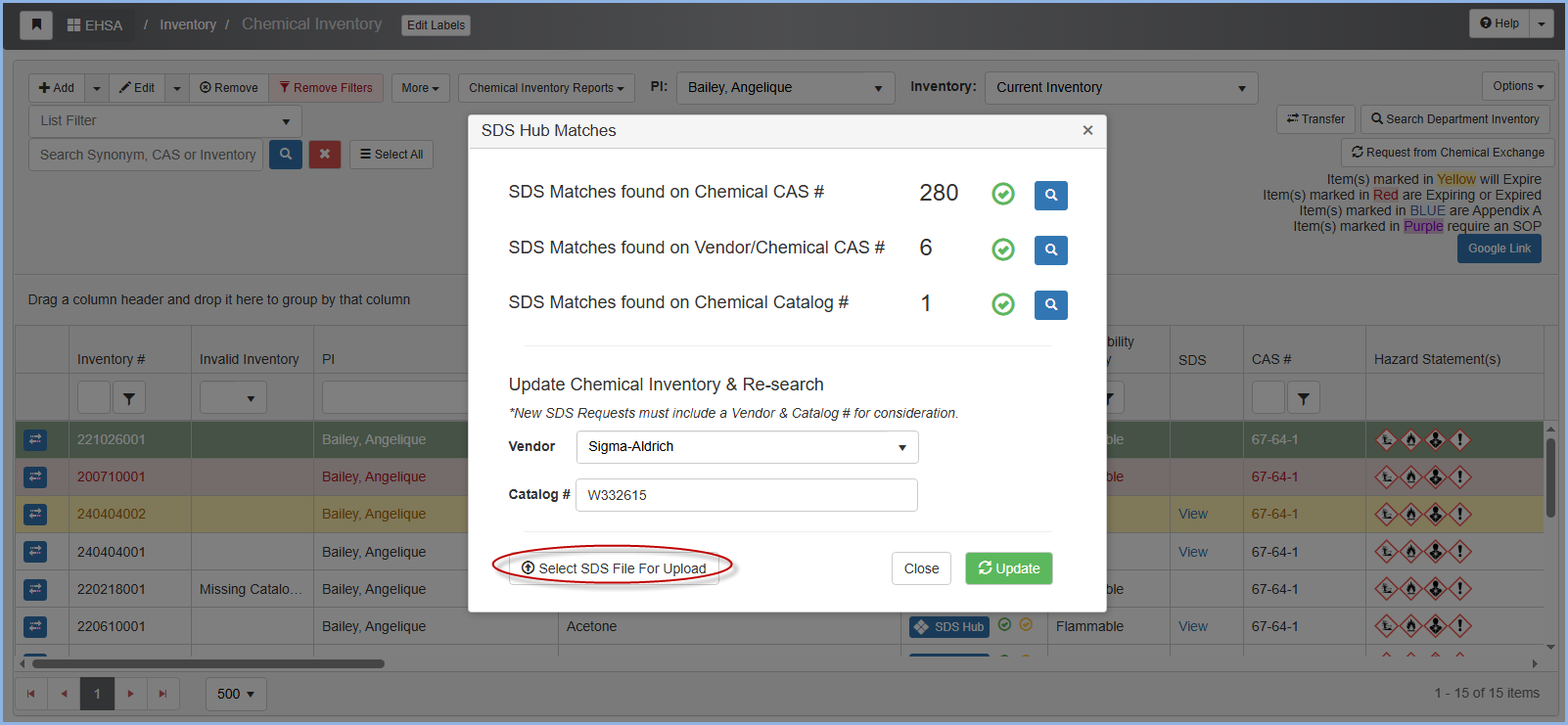
On Site Systems will receive a notification to review your submitted SDS PDF. Once reviewed and approved, the SDS will be available in the Hub.
-
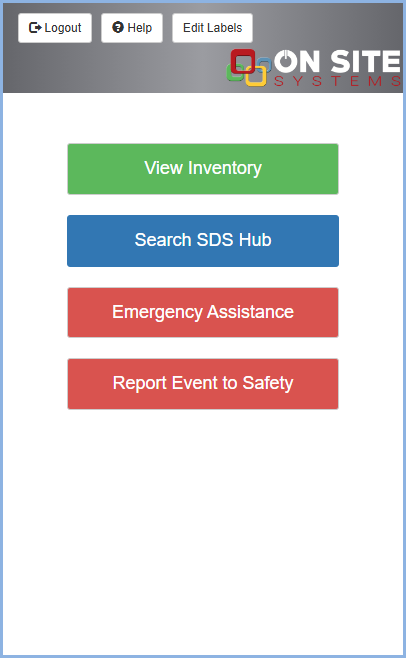
With a SDS Hub Subscription, workers can easily access availble Safety Data Sheets (SDSs) in our Hub directly from their mobile devices. An individual can quickly access SDSs on their mobile devices by clicking a specific URL, which can be easily embedded on a client's webpage for convienent access.