General License Material List
General License Material
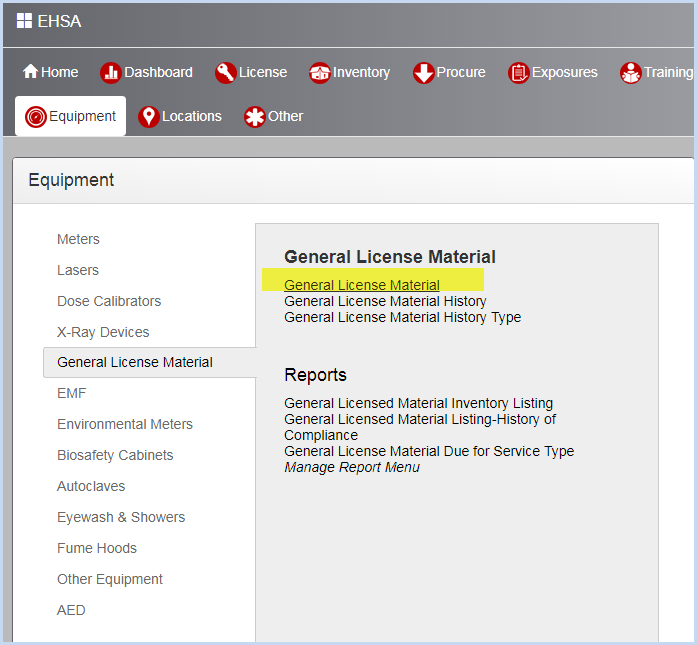
Select Equipment from the Main Menu bar. Select General License Material.
- This opens the General License Material Listing as shown below. Use filters and column sorting to view and find General License Materials for viewing or editing.
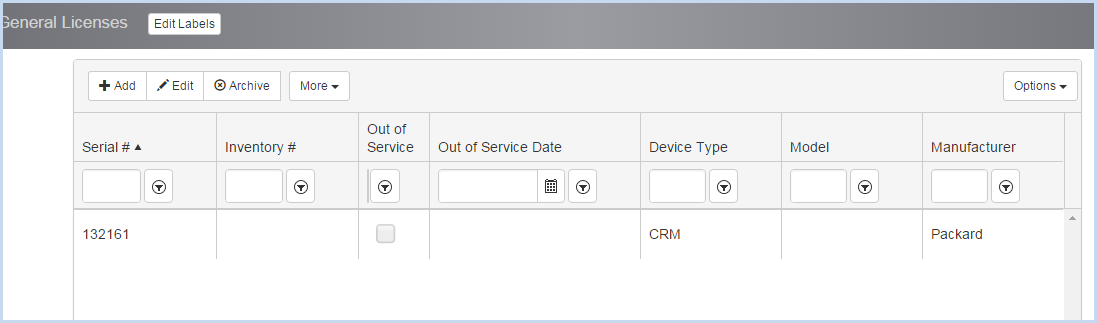
- Click the [More] button to open the list of editable dropdown lists for General License details such as Device Types and Manufacturers.

- Select a list for editing. The list of Device Types is shown below. Select [Add], [Edit], or [Archive] to add or change the list of Device Types.
- Click the [General Licenses] button to return to the list of General License Materials.

- Click Add] to add a Device Type, or highlight a record and click [Edit] to modify the Device Type. Enter the Device Type and Description. Click [Save] to save the entry or [Cancel] to discard any edits and go back to the previous screen.

- Click [Add] to add a General License Material, or [Edit] to modify an existing General License Material. This opens the General License Material entry/edit screen.
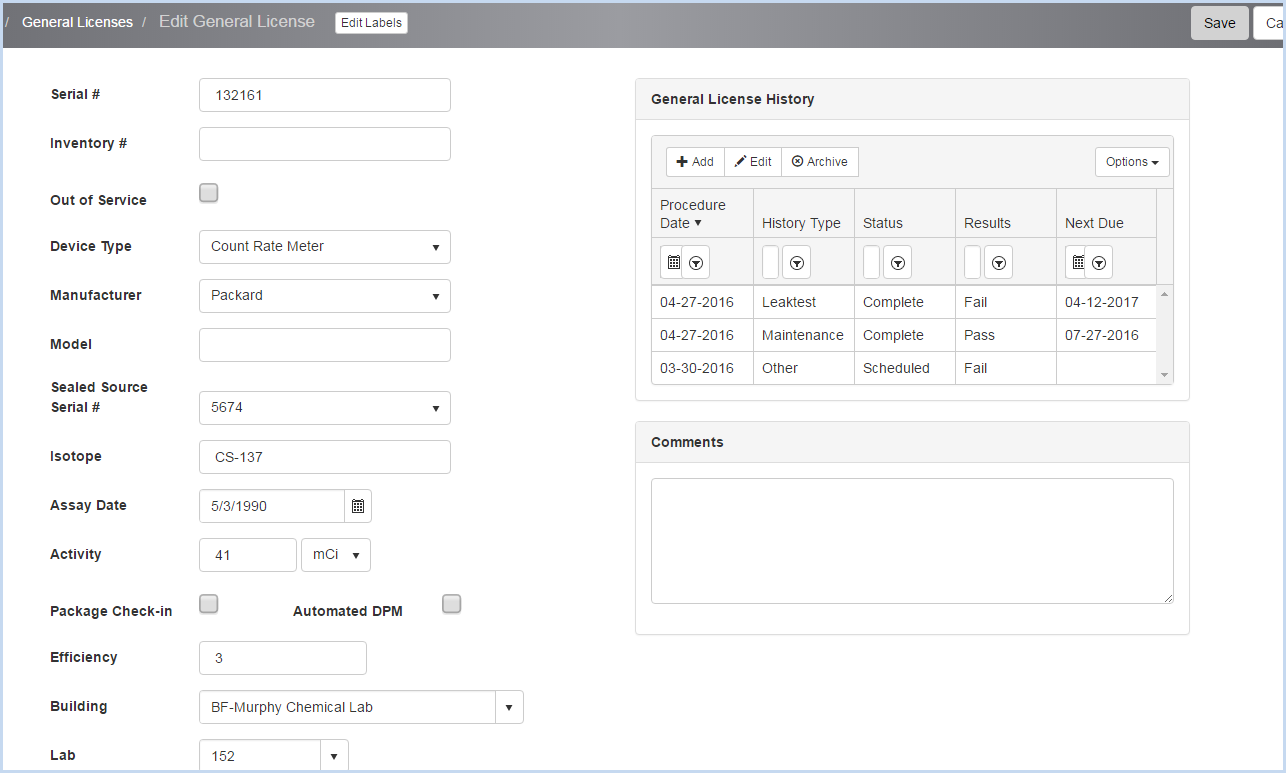
- Enter the Serial #. This field is required and is a unique identifier.
- Enter the Inventory #.
- Check the "Out of Service" box if the device is out of service.
- Select the Device Type and Manufacturer from the dropdown lists.
- Enter the Model.
- Select the Sealed Source Serial # from the dropdown. The associated Isotope, Assay Date, and Activity will auto-fill.
- Check "Package Check-in" box if the device is used for package check in.
- Check "Automated DPM" box if applicable.
- Enter the Efficiency.
- Select the Building and Lab from the dropdowns.
- Enter any Comments as needed.
- Scroll down to view and add or edit the Contacts Section shown below.
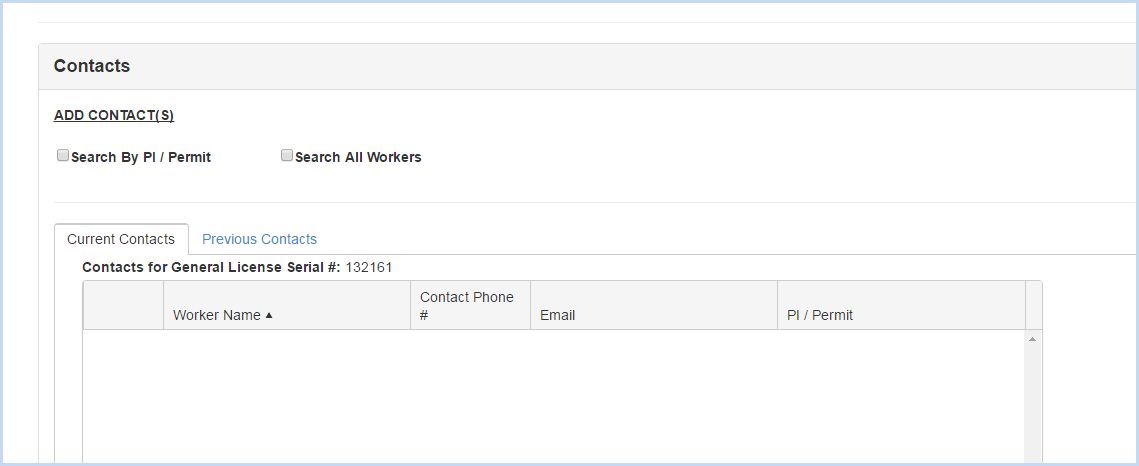
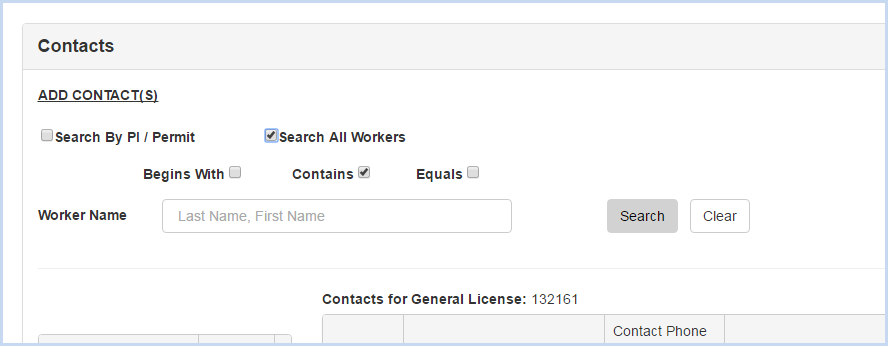
- Click the radio button for Search by PI/Permit or Search All Workers to search for and add a contact.
- Search by PI/Permit is shown below. Select the PI from the dropdown list.
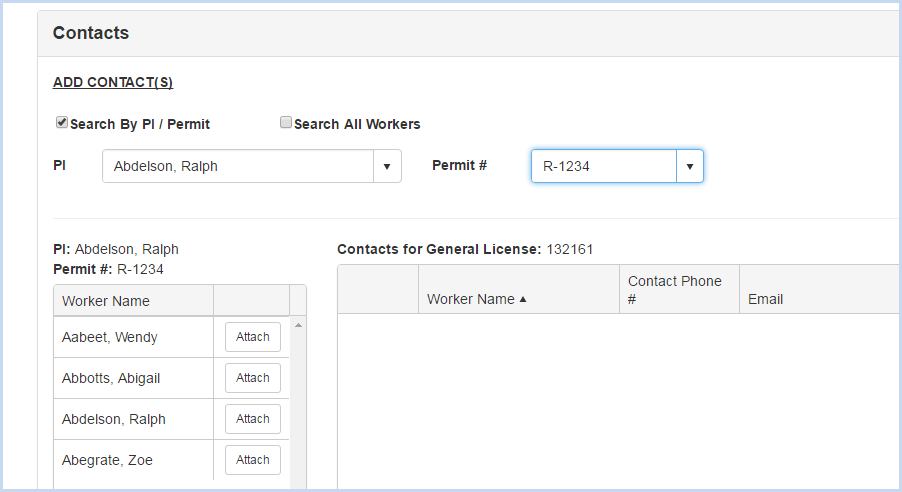
- After the PI is selected, choose one of the Permits attached to the PI from the Permit # dropdown.
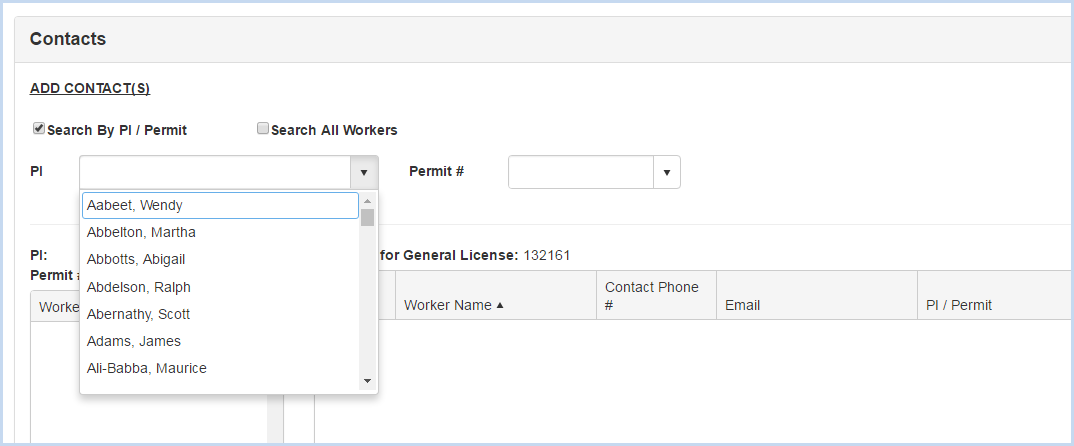
- After the PI and Permit are selected, the list of Workers attached to the permit will be available for attaching.
- Click on the [Attach] button to attach each contact needed.
- When the Search All Workers option is chosen, enter filter criteria (Begins WIth, etc.) and click the [Search] button.
- Click [Save] to save the entries, or [Cancel] to discard any entry/edit and return to the previous screen.